


GG-Shot Auto-Trading: Complete Guide
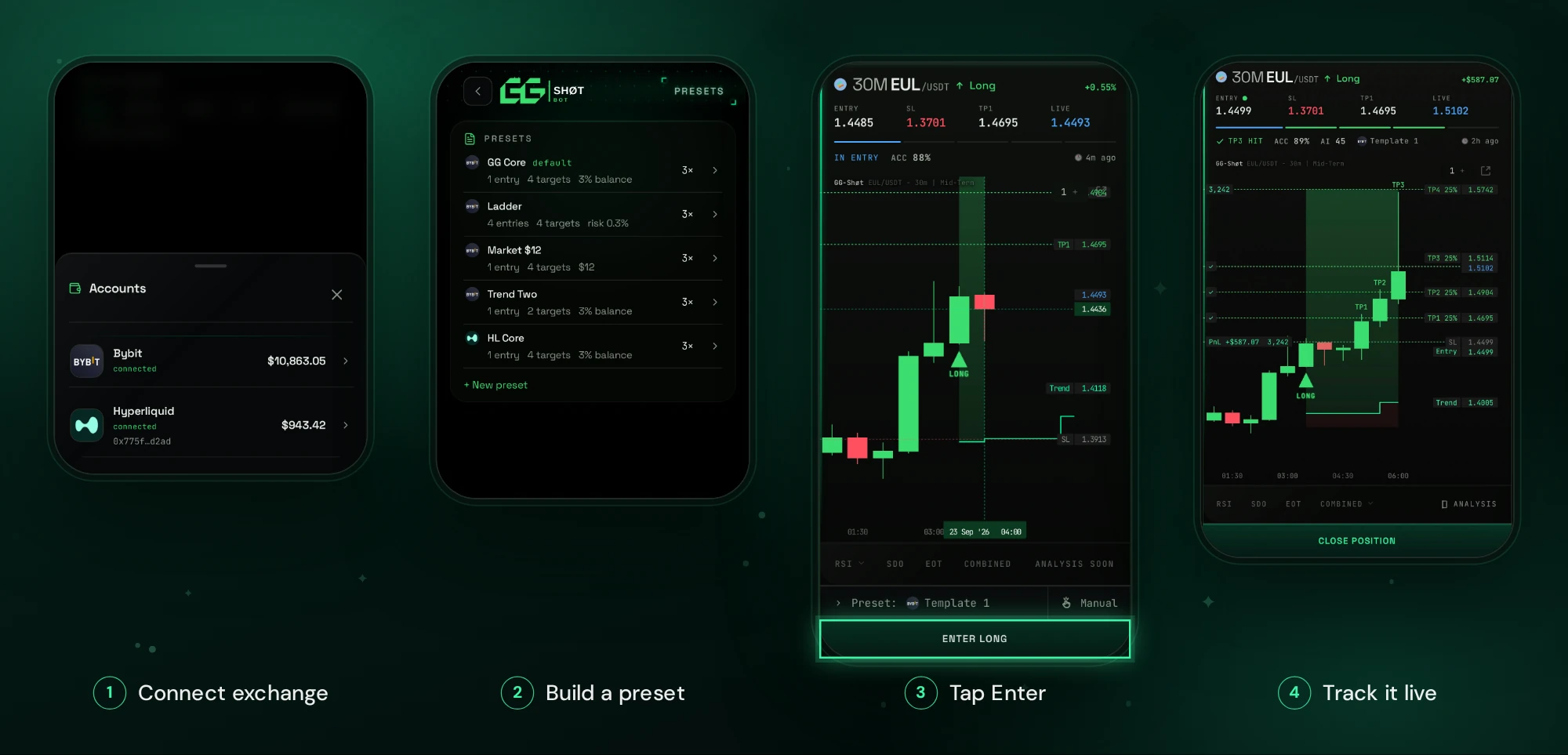
Auto-trading is now available in the GGShot Mini App: GG-Shot signals execute on your Bybit or Hyperliquid account in one tap. The entry order, Stop Loss and Take-Profits (TP1–TP4) are placed on the exchange by your Entry Preset, and the preset manages the stop after entry.
Requirements
- GG-Shot Premium subscription.
- Bybit account with USDT in the Unified Trading Account, or Hyperliquid account with USDC.
My Portfolio
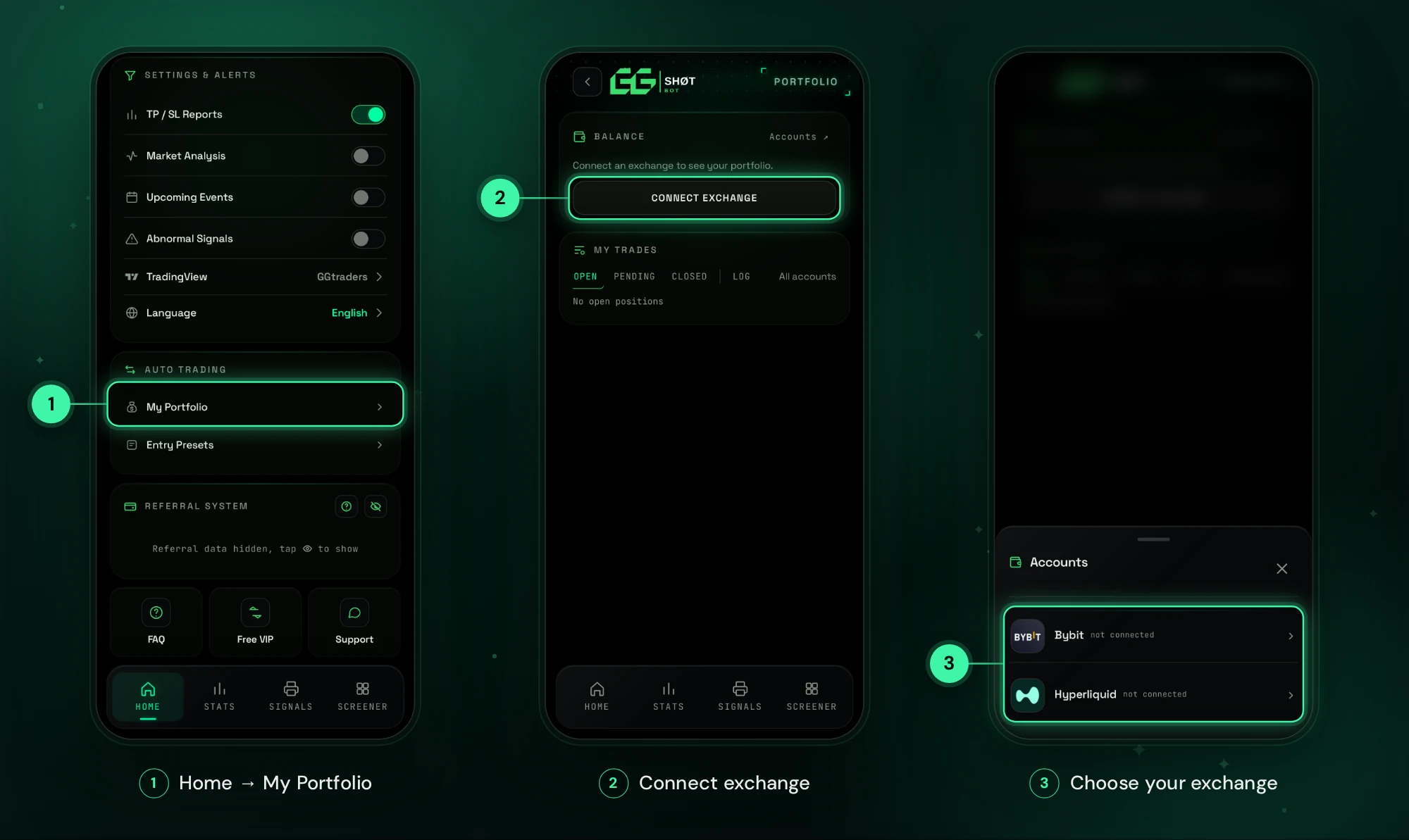
Auto-trading starts in My Portfolio: open @GGShot_Bot, launch the Mini App and go to Home → AUTO TRADING → My Portfolio. It holds your exchanges, balance and trades.
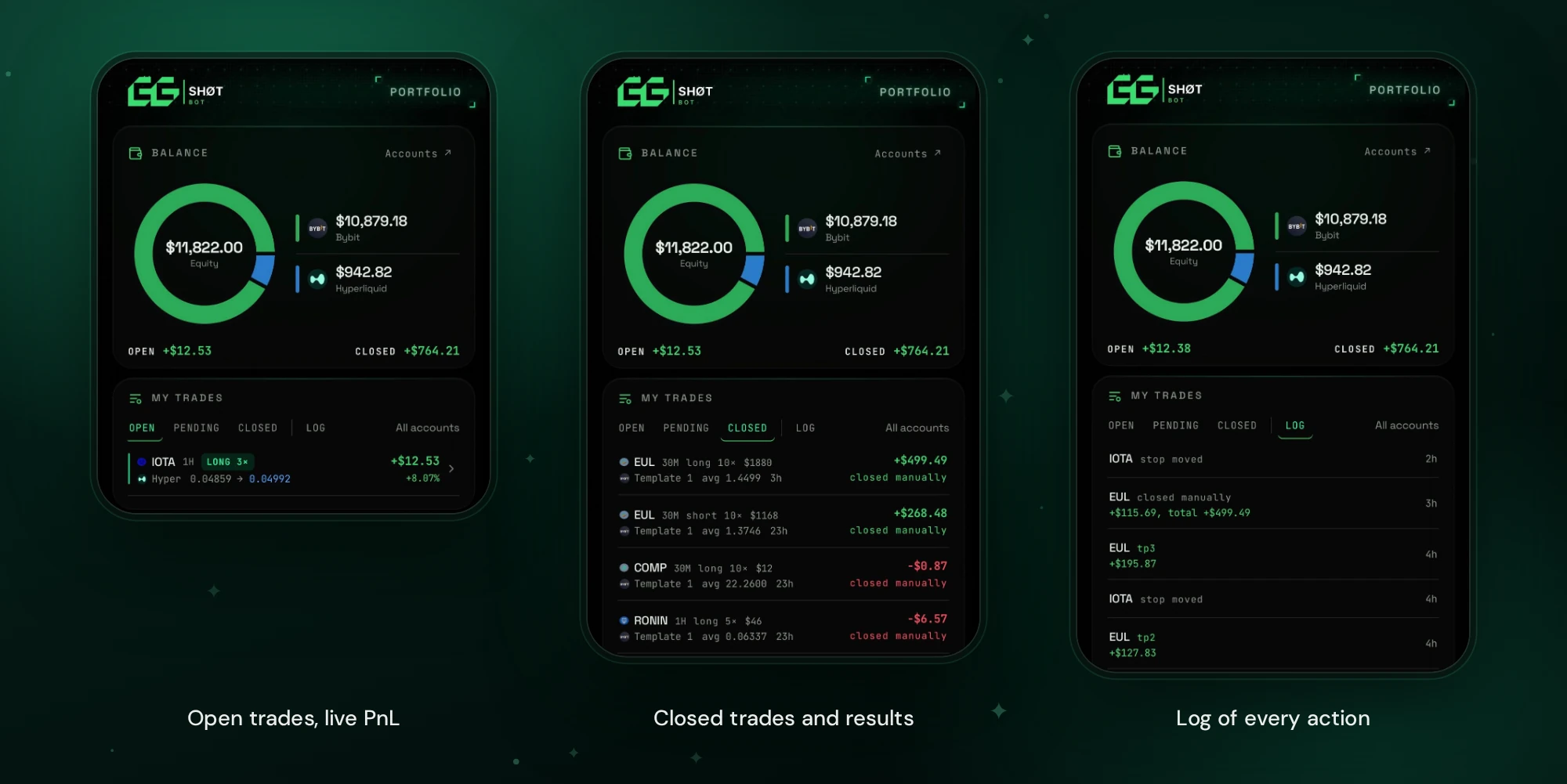
- Balance: total equity across connected exchanges, split by exchange.
- My Trades: OPEN, PENDING, CLOSED and LOG with every action. Each trade shows the coin, timeframe, side, leverage, preset and result.
- Tap or swipe a trade to open its signal or close it (cancel for a pending entry).
- The bot sends a Telegram message when the order is placed, when the entry fills and when the trade closes.
Exchange Connection
Exchanges are connected in My Portfolio: tap Connect exchange (or Accounts ↗ once one is connected) and choose Bybit or Hyperliquid. The connection is trade-only: GG-Shot places and manages orders, but cannot withdraw or transfer funds.
Bybit
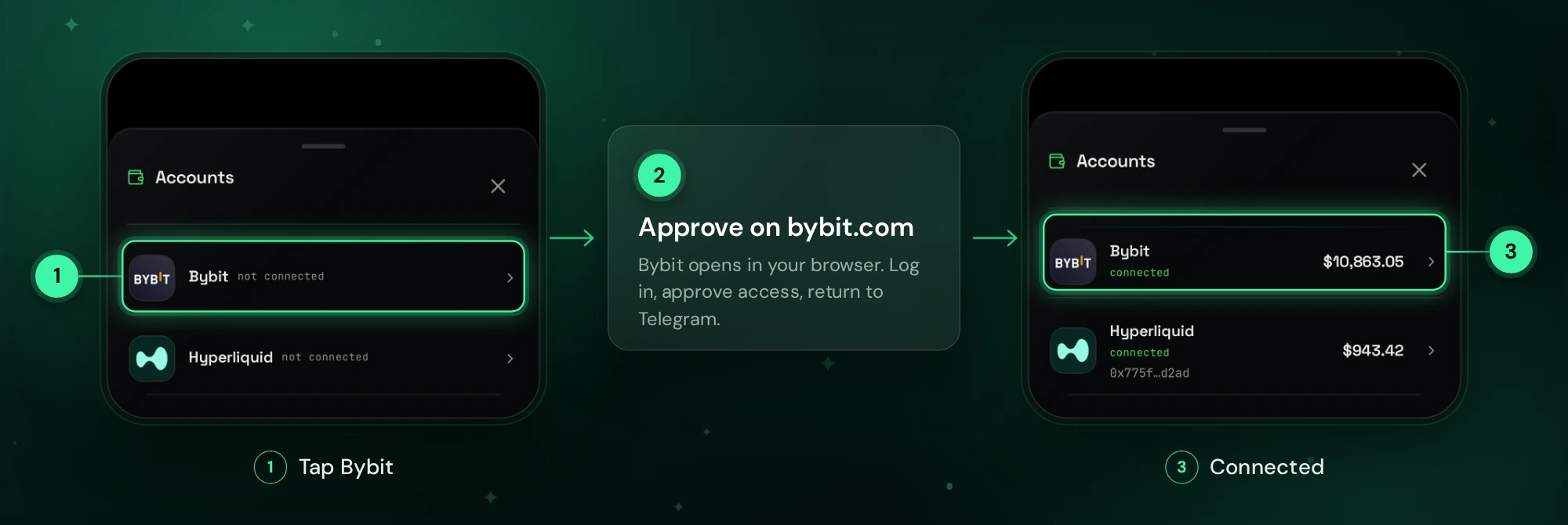
Bybit connects without API keys. Tap Bybit, log in on bybit.com and approve access for GG-Shot. When the page shows Bybit connected, return to Telegram: Bybit appears as connected with your equity.
- Trades use the USDT in the Unified Trading Account. Funds in the Funding account are not used (move them in Bybit: Assets → Transfer).
- No Bybit account yet? Register through this link or with code GGSHOT.
Hyperliquid
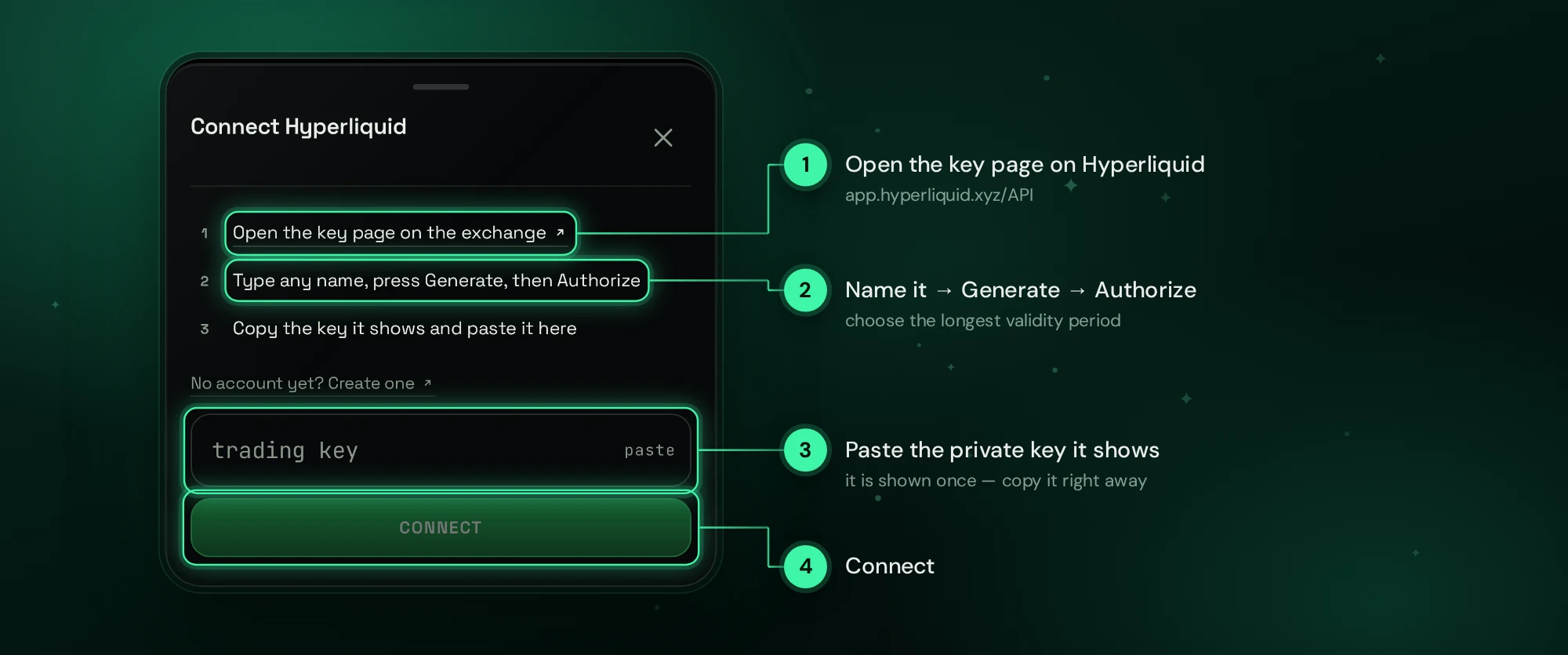
Hyperliquid connects with an API key. In the Connect Hyperliquid sheet, tap Open the key page on the exchange (app.hyperliquid.xyz/API), press Generate, then Authorize and confirm in your wallet. Copy the private key, paste it in the Mini App and tap Connect: the account address is detected from the key.
- The private key is shown once. A key that was generated but not authorized does not work.
- The key has an expiry date, so choose the longest validity. When it expires, generate a new one on the same page.
- Minimum deposit on Hyperliquid is 5 USDC; smaller amounts are not credited.
- No Hyperliquid account yet? Register through this link or with code GGSHOT.
Entry Presets
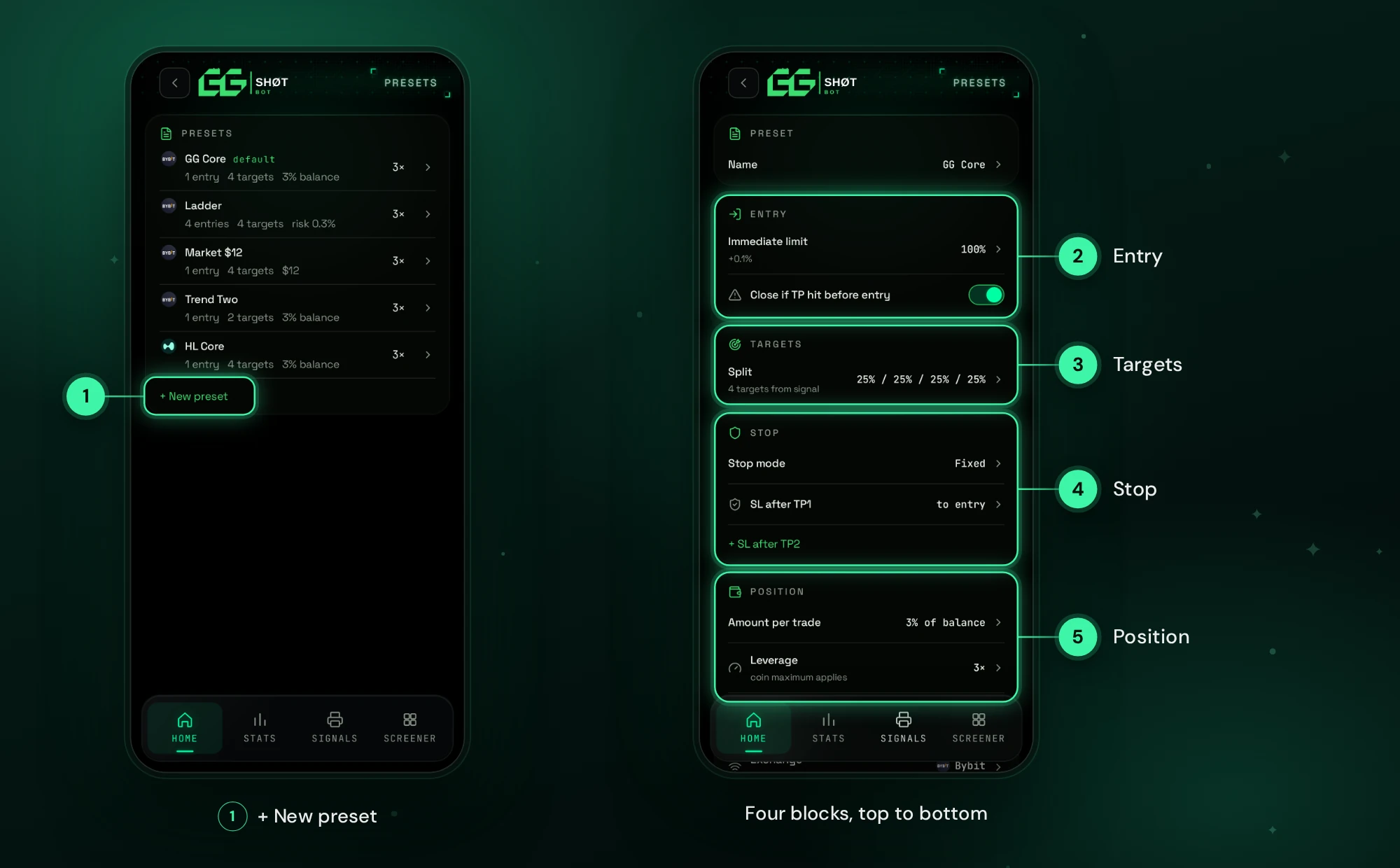
An Entry Preset is your trading template: entry, take-profits, stop and position size. Presets are in Home → Entry Presets, and + New preset creates one. You can keep several presets and set one as default: it is selected on every signal card.
Entry
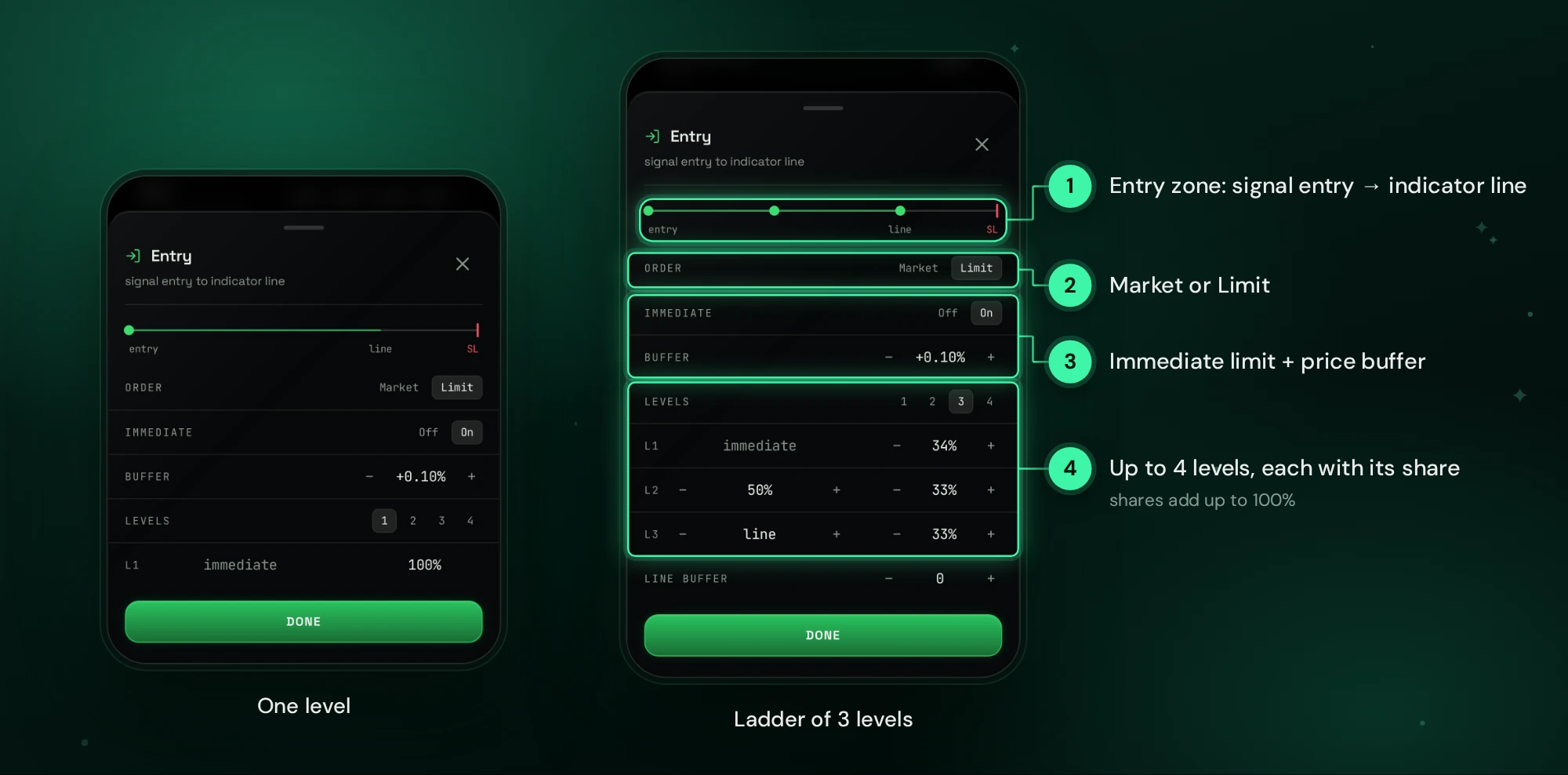
- Order: Market or Limit.
- Immediate: the first level is placed right away at the current price plus a small buffer (for example +0.10%). It fills like a market order, but never at a worse price than the buffer allows.
- Levels: 1 to 4 entry levels inside the signal's zone, from the signal entry to the indicator line, each with its share of the position. Shares add up to 100%. Line buffer moves the levels set at the line a little closer to the market.
- Close if TP hit before entry: if price reaches the first target before the limit fills, the entry is cancelled.
Targets and Stop
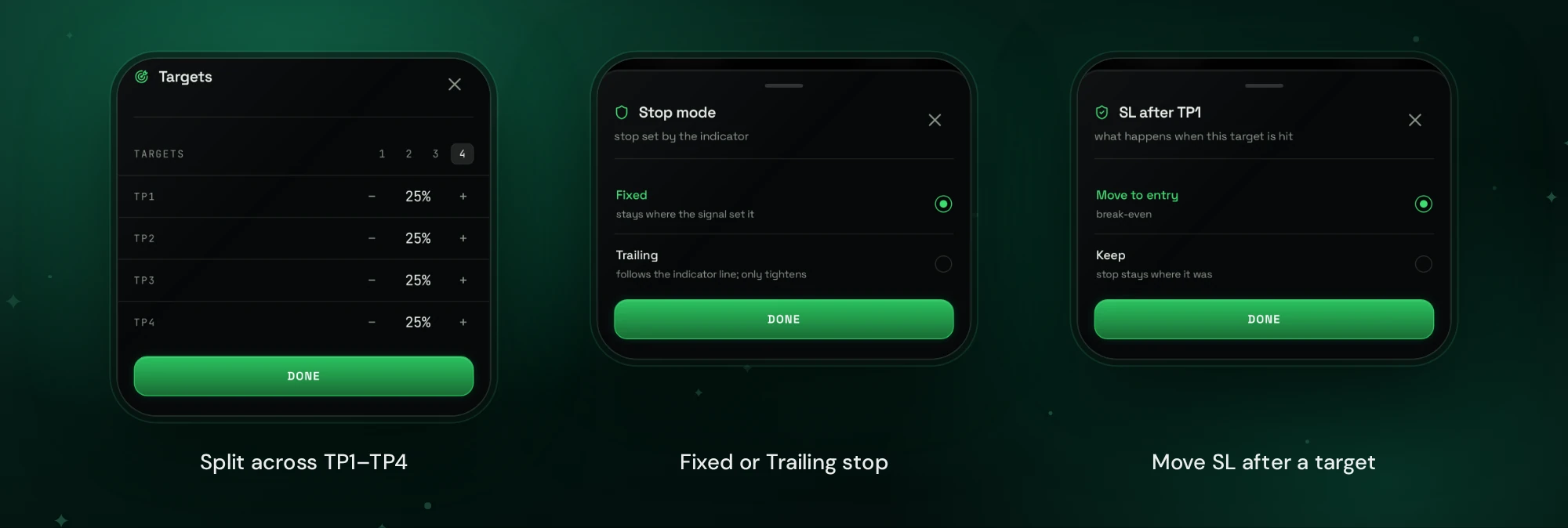
- Targets: the position is split across the signal's TP1–TP4, for example 25% at each. From 1 to 4 targets; shares add up to 100%.
- Stop mode: Fixed keeps the stop where the signal set it. Trailing follows the indicator line and only tightens.
- SL after TP1: Move to entry (break-even) or Keep. + SL after TP2 adds rules for the next targets: move to entry, to the previous target, or keep.
Position
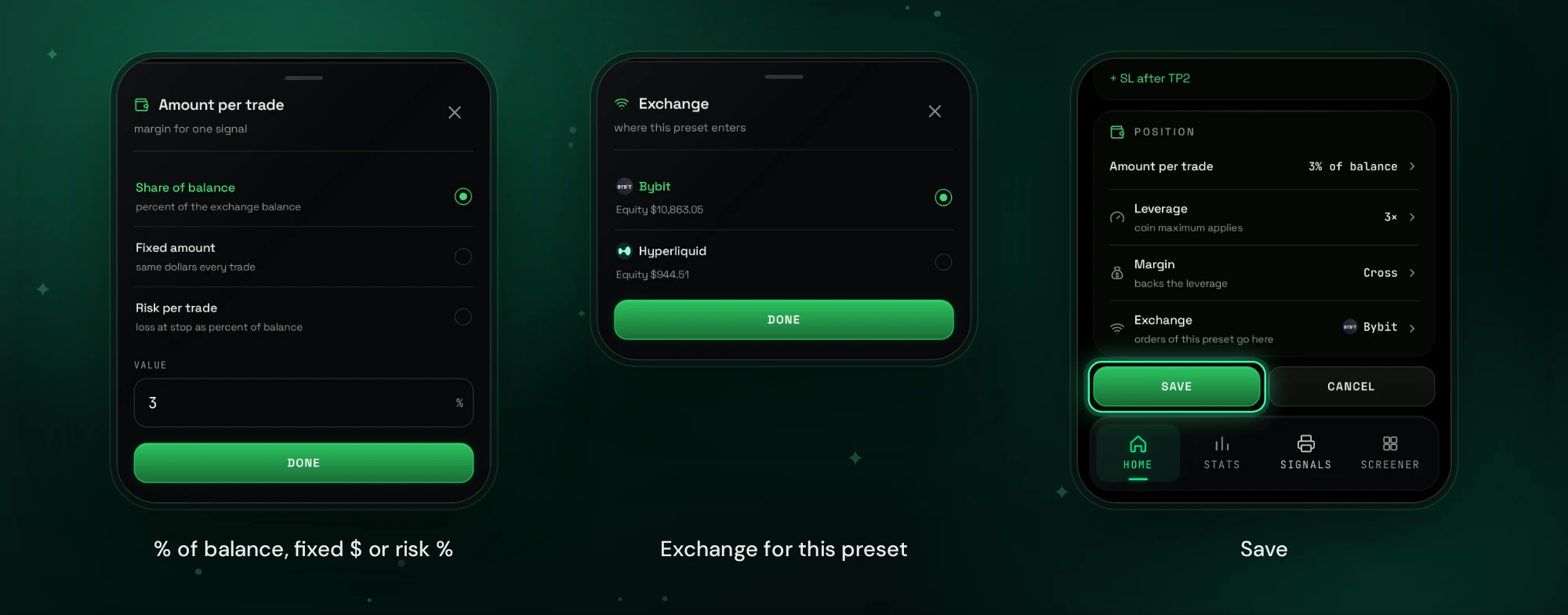
- Amount per trade: Share of balance (percent of the exchange balance), Fixed amount (the same dollars every trade) or Risk per trade (the loss at the stop as a percent of balance).
- Leverage: 1–20×, capped by the coin's maximum on the exchange.
- Margin: Isolated or Cross. On a Bybit Unified Trading Account, the margin mode is set for the whole account in Bybit, and trades use that mode.
- Exchange: where the preset's orders go. Each preset trades on one exchange, so keep one preset per exchange if you use both.
Presets are managed from the list: tap or swipe a row to edit, delete or make it default.
Entering a Trade
Signals are in the Signals tab, and the IN ENTRY filter shows setups still inside their entry zone. The entry block with the ENTER button appears under the signal chart only when an exchange is connected and the signal's coin is traded on it. Hyperliquid lists fewer coins than Bybit, so some signals can be entered on Bybit only.
The entry block has two ways to enter: by preset or manually.
By Preset
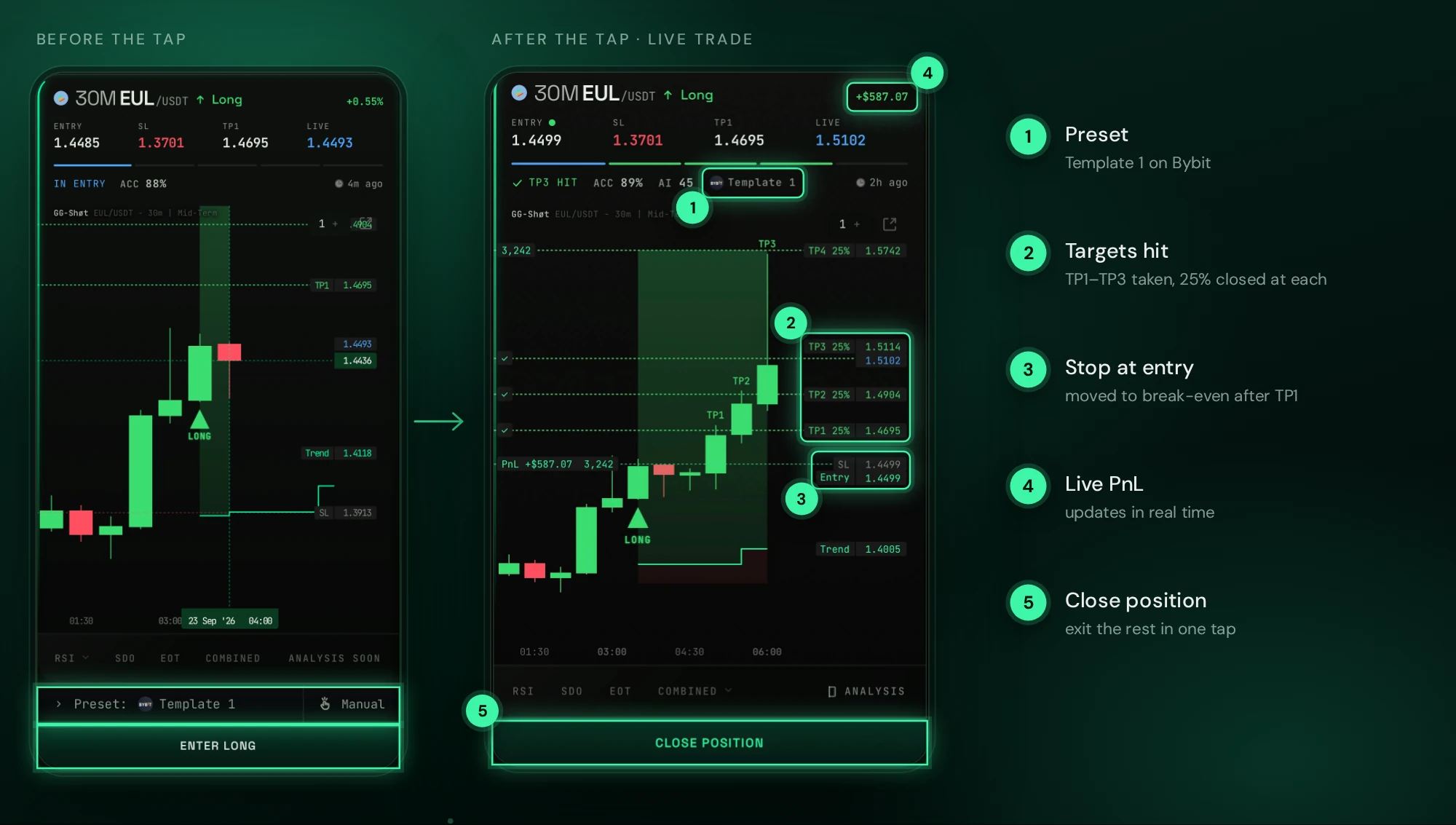
The default preset is already selected; tap Preset to choose another one for this trade. ENTER LONG / ENTER SHORT sends the trade to your exchange in one tap.
Market and Immediate levels fill right away; deeper limit levels wait in PENDING until price reaches them. Once the entry fills, the Stop Loss and Take-Profits are placed on the exchange, and the preset's stop rules take over.
The signal card then shows the live trade: targets taken are ticked on the chart, the stop line moves by the preset (below, to break-even after TP1), PnL updates in real time, and CLOSE POSITION exits the rest in one tap, with AUTO LIMIT next to it for a limit exit that follows the price and falls back to market if it does not fill.
Manual
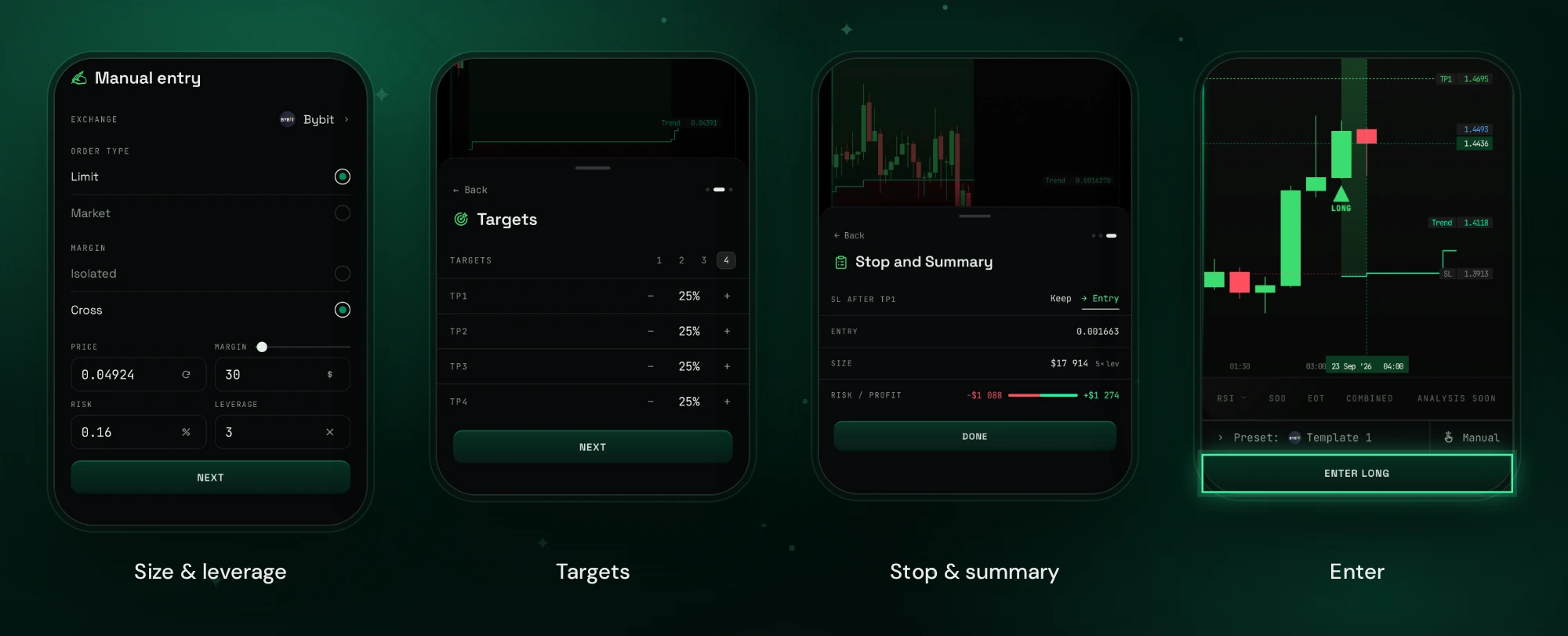
Manual sets your own parameters for one trade and leaves your presets unchanged: exchange, order type, margin mode, price, margin, risk and leverage, the number of targets and their shares, and the stop rule after TP1. The summary shows the entry, size, and risk and profit in dollars before you confirm.
After Done, the card shows Preset: Manual. ENTER LONG / ENTER SHORT sends the trade, and Edit reopens the parameters.
Troubleshooting
- Bybit shows $0 or a low balance. Move USDT from the Funding account to the Unified Trading Account.
- The Hyperliquid key is rejected. Check that Authorize was pressed after Generate and that you pasted the private key, not an address. If the key has expired, generate a new one.
- Hyperliquid refuses to create another API key. Hyperliquid limits the number of API keys per account. Remove an unused one on the same API page.
- "This pair is not listed on your exchange". The coin is not traded on the exchange of the selected preset. Choose a preset for your other exchange.
- The Enter button is inactive. You already have an open trade on this coin.
FAQ
Does it take every signal automatically?
No. You choose which signals to trade and enter each one with a tap. After the tap, the entry, stop, targets and stop moves run by your preset.
Can I use Bybit and Hyperliquid together?
Yes. Connect both and keep a preset for each exchange; choose the right one on the signal card.
Do I need to keep the app open?
No. Orders sit on the exchange, and the stop rules keep working when the app is closed.
Do I still get signals in Telegram?
Yes. Signals, charts, VALIDATOR analysis and reports work as before; auto-trading is an addition, not a replacement.
Get Started
Open @GGShot_Bot, launch the Mini App and go to Home → AUTO TRADING → My Portfolio. Setup takes one minute.