


Hyperliquid Trading Bot in Telegram: Auto-Trade Crypto and Stocks
GG-Shot runs on Hyperliquid as a trading bot you control from Telegram. Every signal of the GG-Shot Indicator comes with an entry zone, a Stop Loss and four Take-Profits. The GGShot Mini App enters it on your Hyperliquid account by your own preset: in one tap on the signal card, or automatically with a Desk. The bot works with crypto and with the stock, index and commodity markets on Hyperliquid.
What You Can Trade on Hyperliquid
- About 250 assets on Hyperliquid have ready GG-Shot strategies.
- Crypto: BTC, ETH, SOL, HYPE and other majors, altcoins, DeFi and memecoins.
- 75+ stocks, indices and commodities: NVDA, TSLA, AAPL, MSFT, META, the S&P 500, gold, silver, WTI and Brent oil, natural gas and more. See Hyperliquid Stocks for the full picture.
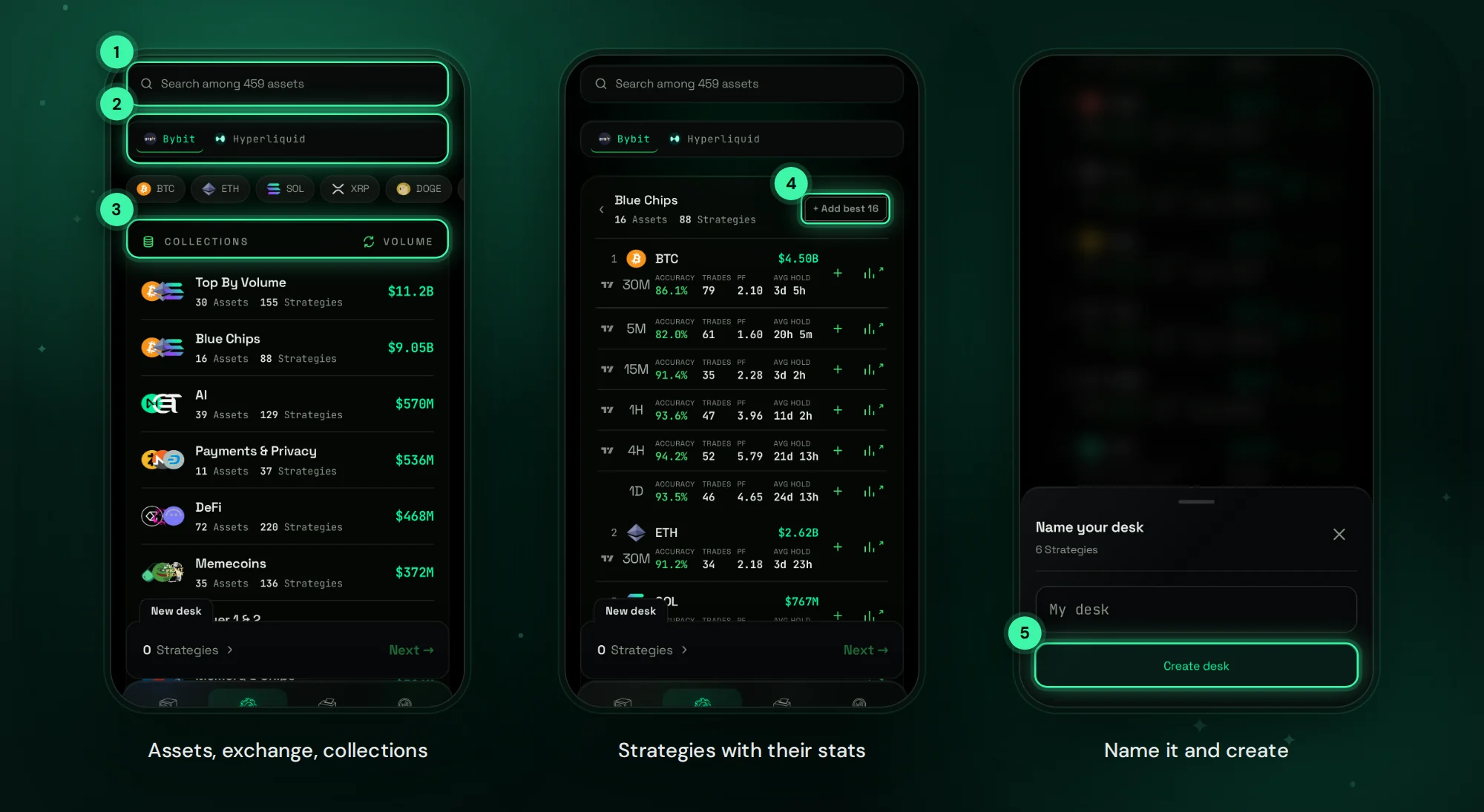
Each strategy is one asset on one timeframe, from 5M to 1D, with its own accuracy, number of trades, profit factor and average hold time. Assets are grouped into collections ranked by trading volume: Top By Volume, Blue Chips, Mag 7 & Big Tech, Memory & Chips, Indices & Commodities, AI, DeFi, Memecoins and more.
How the Bot Trades
- A strategy issues a signal: direction, entry zone, Stop Loss and TP1–TP4.
- Your Entry Preset decides how to enter: market or limit, one level or up to four levels inside the entry zone, and the size of each.
- Once the entry fills, the Stop Loss and Take-Profits are placed on Hyperliquid.
- The preset manages the stop: keep it, move it to entry or break-even after TP1, or trail it along the indicator line.
Orders sit on the exchange, so the stop rules and desk automation keep working when Telegram and the app are closed.
Connect Hyperliquid
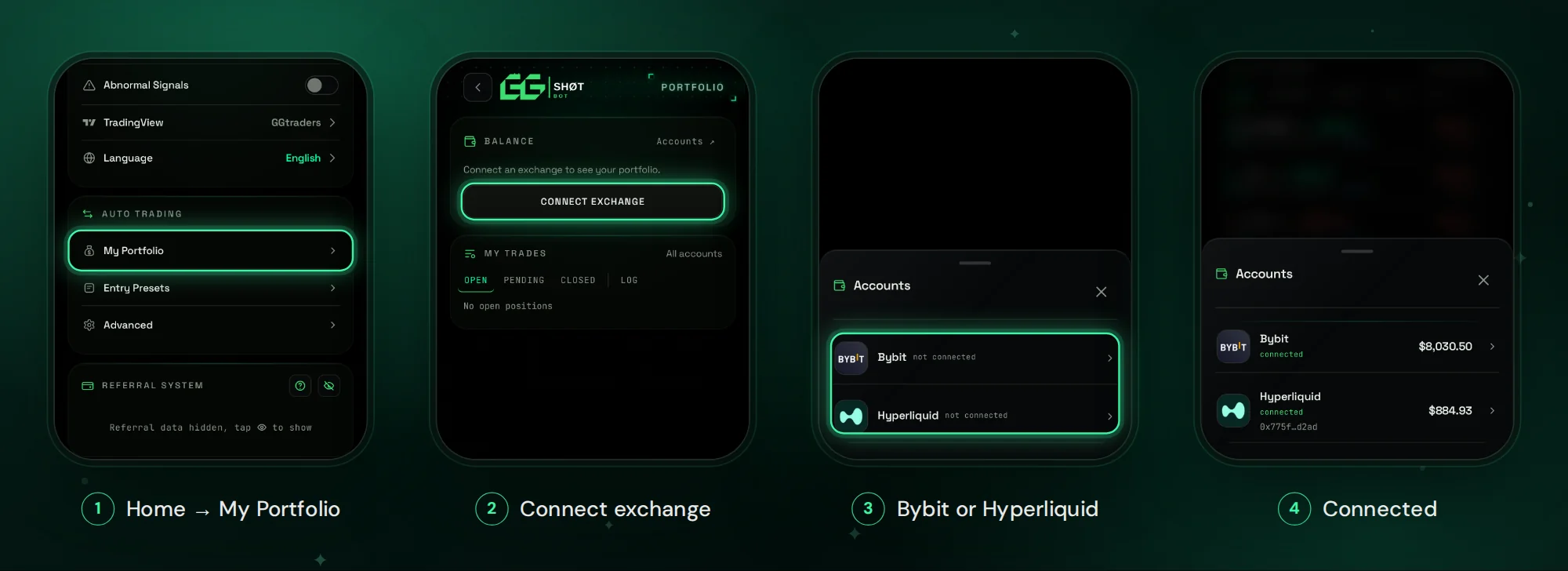
Open @GGShot_Bot, launch the Mini App and go to Home → AUTO TRADING → My Portfolio → Connect exchange → Hyperliquid. There are two ways to connect:
With a Wallet
- Choose MetaMask, Trust Wallet, Phantom or, on a computer, a browser wallet.
- The connection page opens in the wallet's browser: pick the funded account.
- Confirm the two requests in the wallet. The page shows Hyperliquid connected.
With an API Key
- Open app.hyperliquid.xyz/API, type any name, press Generate, then Authorize.
- Copy the private key it shows. It is shown once, so choose the longest validity.
- In the Mini App tap I have a key, paste it and tap Connect: the account address is detected from the key.
- When the key expires, generate a new one on the same page.
Trades use USDC on your Hyperliquid account. The minimum deposit on Hyperliquid is 5 USDC; smaller amounts are not credited.
Desks: Your Hyperliquid Bots
A desk is a set of strategies you pick yourself. It keeps its own results, backtest and automation. For example:
- Hyperliquid stocks only, or a Mag 7 desk;
- gold, silver and oil;
- Bitcoin scalping on 5M;
- a single coin such as HYPE.
In the Desks tab tap + New desk, choose Hyperliquid, open a collection and add strategies with +, or tap + Add best to take the strongest strategy of every asset in the collection. You can keep up to three desks of your own next to Default, GG-Shot's own selection, with up to 150 strategies in total.
Automate a Desk
- Open the desk, tap Automate, choose the preset and the Hyperliquid account, check margin per trade and tap Start.
- Every new signal of the desk is entered with that preset. Signals issued before Start are not taken.
- One trade per coin: if the account already holds the coin, the new signal is skipped.
- An opposite signal closes the position at market and opens the new trade in the other direction.
- Stop ends new entries; open trades keep their stop and targets.
Backtest Before You Automate
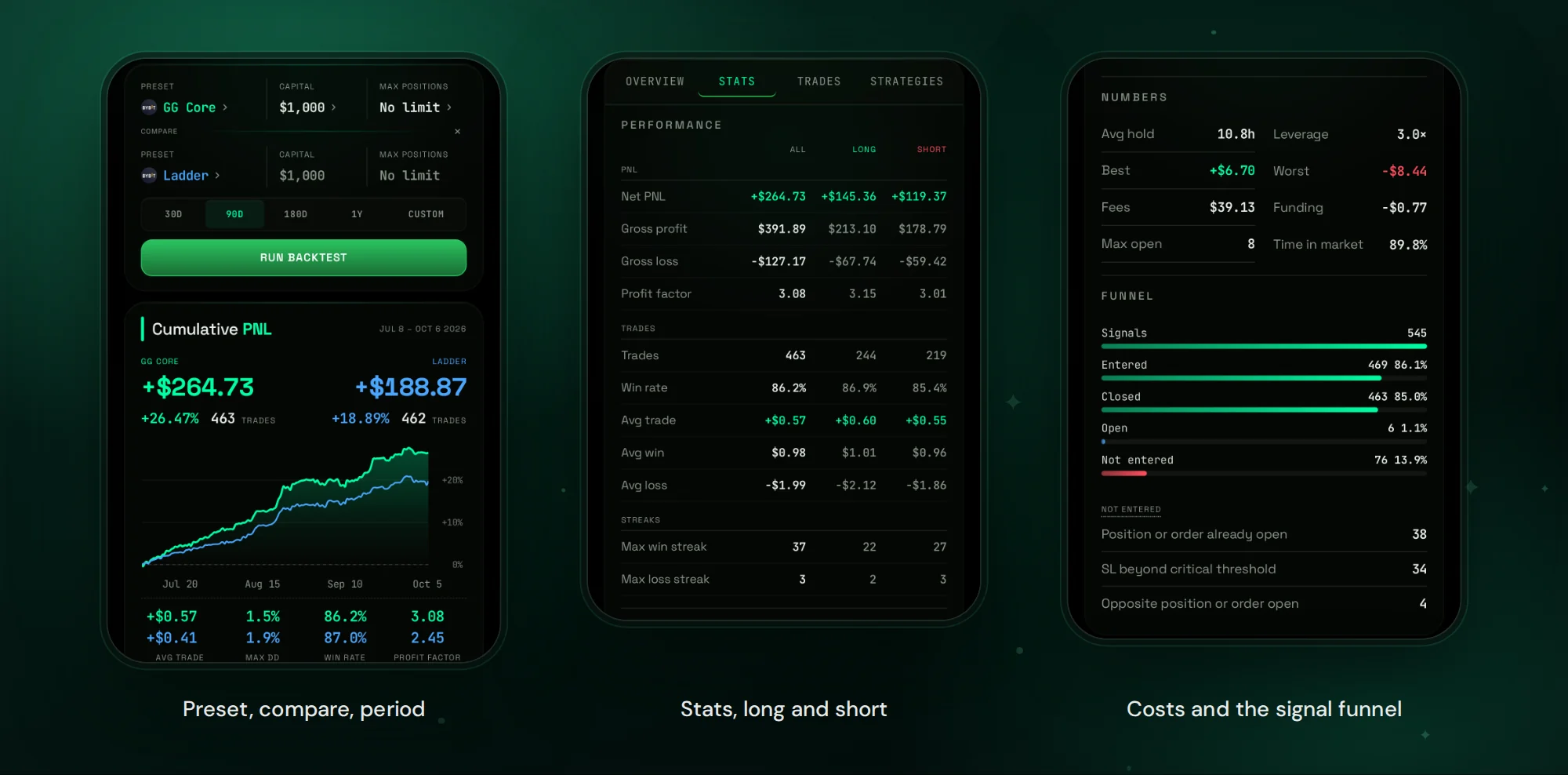
Backtest replays a desk over a past period with your preset, capital and maximum positions. Every trade is replayed on 1-minute candles with fees, funding, entry delay and slippage. Choose 30D, 90D, 180D, 1Y or custom dates, and run + COMPARE to test a second preset on the same desk. The result shows PNL, maximum drawdown, win rate, profit factor, long versus short, and the reason every skipped signal was not entered. It is a historical simulation, not a forecast.
One-Tap and Manual Entries
- ENTER LONG / ENTER SHORT on a signal card sends the trade in one tap with your default preset.
- Manual sets your own size, leverage, targets and stop for one trade without changing a preset.
- Close position exits at market; Limit exits with a limit order that follows the price when Smart Limit is on.
- The ENTER block appears when the coin is traded on a connected exchange. Hyperliquid lists fewer coins than Bybit, so some signals can be entered on Bybit only.
Hyperliquid and Bybit Together
You can connect both exchanges and trade on up to two accounts at the same time. Keep one preset per exchange; desks on Hyperliquid and Bybit trade independently. Bybit connects through its own authorization page, with no API keys: see Bybit Trading Bot in Telegram.
FAQ
Do I need to keep my phone or computer on?
No. Orders, stops and targets sit on Hyperliquid, and desk automation runs on the servers.
Can the bot trade Hyperliquid stocks?
Yes. NVDA, TSLA, gold, oil and other stock, index and commodity markets, 75+ in total, have strategies, and you can build a desk from them. Details in Hyperliquid Stocks.
Wallet or API key?
Both connect the same account. A wallet takes two confirmations; an API key is generated once on Hyperliquid and pasted into the app.
Does every signal get traded?
An automated desk enters every new signal of its strategies. Everything else is your choice, one tap on the signal card.
What does it cost?
Auto-trading is part of GG-Shot Premium. Plans run for 1, 3 or 12 months; current prices are in @GGShot_Bot.
Get Started
Open @GGShot_Bot, launch the Mini App, connect Hyperliquid in Home → AUTO TRADING → My Portfolio, then open the Desks tab. Every setting is described in the GG-Shot Auto-Trading: Complete Guide.